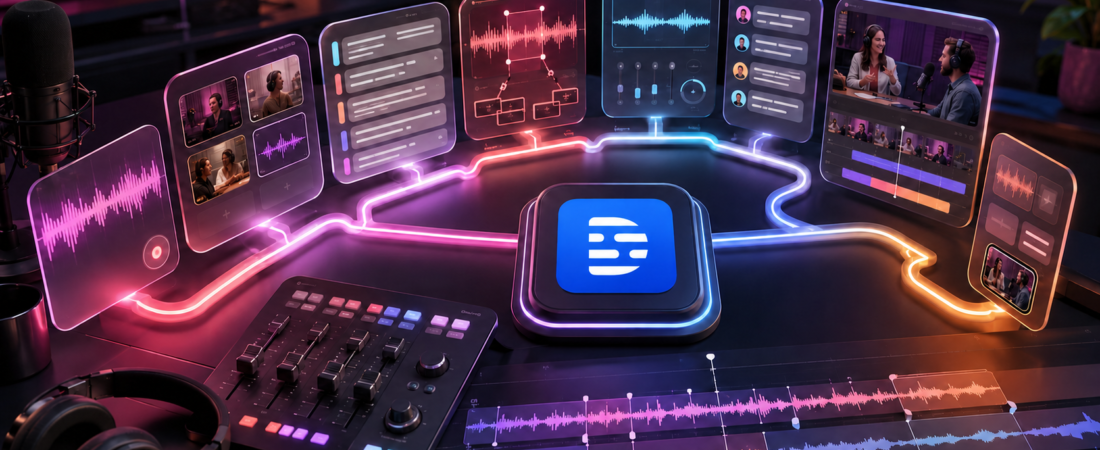
Editing a podcast in Descript feels deceptively simple: delete words from the transcript and the matching audio disappears. That really does make the rough cut easier. The part that still requires judgment is deciding what to remove, keeping the conversation natural, and knowing when to leave the transcript and fix a cut in the timeline.
Last updated: August 14, 2026 · Workflow and current feature locations checked against Descript’s documentation.
Edit structure first, clean the audio second, polish last
My recommended order is: organize the recording, correct the transcript, make the structural cuts, review retakes and filler words, adjust pacing, enhance the audio, add the episode packaging, and then listen from beginning to end before exporting.
The main mistake is applying every AI cleanup tool at the start. You end up processing audio that may later be deleted, spending unnecessary AI credits, and making it harder to judge whether a rough transition came from the original recording or an automatic edit.
Before you edit: protect the original recording
Descript edits non-destructively, but I still keep the original WAV or high-quality source files outside the project. For an important guest interview, I also keep a second local recording whenever possible. A cloud workflow is convenient; it is not a substitute for a backup.
For a two-person show, the ideal source package looks like this:
- One isolated audio track for the host
- One isolated audio track for the guest
- Matching sample rates and a clear sync point
- Intro, outro and music saved as separate files
- Correct spellings for names, companies and specialist terms
You can edit a single mixed MP3, but separate tracks give you much more control when one speaker is quiet, another has background noise, or two people talk over each other.
Record in Descript or import your audio
Descript gives you several starting points. You can record directly into a project, use Descript Rooms for a remote conversation, or import existing audio from your computer, phone or another recording platform.
Rooms is useful for remote interviews because each participant’s audio and video is recorded separately. Descript can record Rooms sessions in up to 4K, depending on the setup, and automatically brings the tracks into the editor. Direct recording is convenient for a solo episode or voiceover. Importing remains the safest option when you already have a recording workflow you trust.
My recommendation
Do a short equipment test before the real episode. Check the microphone source, headphones, room noise and input level. A few seconds of clean room tone can also help you recognize the recording environment later. AI enhancement can improve an imperfect room; it cannot recover words lost to clipping, dropouts or a disconnected microphone.
Name the project consistently. Something like ShowName_Ep024_GuestName is much easier to find than New Project 17 six months later.
Build a multitrack Sequence and label speakers
If you recorded in Rooms or Descript’s editor recorder, Descript may create a Sequence automatically. If you imported separate microphone or camera files, create a Sequence before making the first edit.
A Sequence groups synchronized sources so they behave like one item in the composition. Delete a sentence from the script and Descript applies the cut across the linked tracks. Without that structure, you risk moving the host track while leaving the guest, camera or backup audio behind.
After syncing the files:
- Check the beginning and end for drift.
- Listen to a moment where both speakers respond quickly.
- Assign the correct speaker labels.
- Check for duplicate transcription caused by microphone bleed.
- Confirm that the best microphone is active for each speaker.
Do this before cutting. Fixing synchronization after dozens of edits is possible, but it turns an easy transcript workflow into tedious repair work.
Correct the transcript without changing the audio
This is the distinction every new Descript user needs to understand:
| Action | What changes | Use it when… |
|---|---|---|
| Correct transcript | Only the written transcript, captions and text representation | Descript heard the word incorrectly |
| Remove media | The transcript and the linked audio/video | You want the spoken section removed from the episode |
| Remove from transcript | The word disappears from text while the audio stays | You need cleaner published text without altering speech |
If a guest says “Castmagic” but the transcript writes “cast magic,” use Correct mode. Simply deleting and retyping in the normal editing mode can change the media rather than fix the text.
I correct recurring names, brands and technical phrases before the main edit. I do not proofread every comma at this stage unless the full transcript will be published. The goal is to make the document accurate enough that search, captions and AI tools understand the conversation.
Make the structural edit in the transcript
Now I edit the episode for meaning, not polish. I read and listen through the conversation, removing sections that do not earn their place:
- Setup chatter that belongs before the published opening
- False starts where the speaker immediately gives a cleaner answer
- Repeated explanations
- Long tangents that do not serve the episode promise
- Private comments or recording instructions
- Claims that need verification before publication
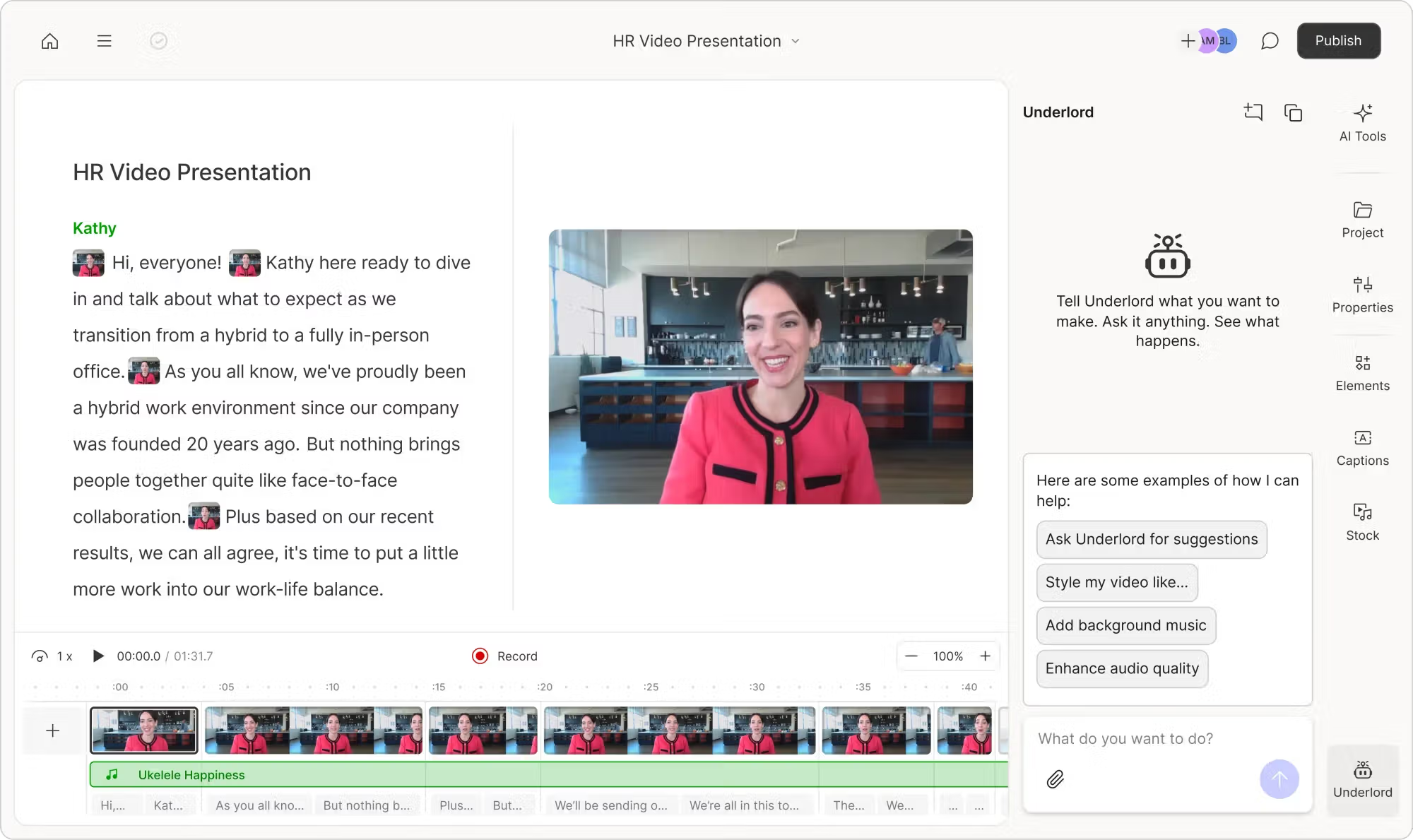
This is where Descript is genuinely pleasant. Searching, reading and rearranging ideas is faster than scanning an anonymous waveform. A strong quote can be highlighted, a repeated paragraph can be spotted quickly, and a section can be moved like text in a document.
Do not polish audio you may delete
I finish the broad cut before applying Studio Sound or asking Underlord to clean everything. Structural editing usually removes more time than filler-word cleanup. Processing the shorter version is more economical and easier to review.
Listen around every important cut
Text can hide audio problems. A paragraph may read perfectly while the edit clips a breath, changes room tone, or creates an unnatural response. I play a few seconds before and after every major deletion. If it sounds abrupt, the timeline and wordbar let me adjust the boundary or word gap more precisely.
Regenerate can smooth an awkward edit in supported English audio, but I treat generated speech as a repair option, not the default solution. Moving the cut slightly or restoring a short pause often sounds more natural and costs no AI credits.
Review retakes, filler words and long gaps
Once the episode structure works, open the AI Tools panel and use the “Sound Good” tools selectively. Descript currently includes Remove Retakes, Remove Filler Words, Shorten Word Gaps and Edit for Clarity.
Remove Retakes
This is most useful for solo podcasts and scripted introductions, where you may restart the same sentence three times. Descript marks the earlier attempts as ignored text so you can review or restore them. For a natural interview, it may be less reliable because two similar sentences are not always failed takes.
Remove Filler Words
Descript can find words such as “um,” “uh” and “you know,” then let you delete, ignore or replace individual cases with a gap. Enable Avoid harsh cuts so the tool skips removals that would clip nearby words or create an obvious edit.
I do not remove every filler word. Some are genuine clutter; others are part of a speaker’s timing. A completely hesitation-free conversation often sounds more artificial than the original.
Shorten Word Gaps
Long silence can make an episode drag, but one global setting is rarely right for every section. A pause before an important answer has editorial value. A ten-second pause while someone searches for a note probably does not.
Preview the results, shorten obvious dead air, and leave enough room for the conversation to breathe. If the cleaned episode suddenly feels rushed, restore some of the pauses rather than assuming faster is always better.
Edit for Clarity
Edit for Clarity can remove wordiness, retakes, filler and off-topic sections at Low, Medium or Heavy intensity. I would begin on Low and review the ignored text. Heavy cleanup may improve a scripted monologue but can remove personality, qualifications or context from an interview.
Improve the sound, then balance the episode
Studio Sound is designed to reduce room noise and echo while making speech clearer and more consistent. It can be extremely useful for home-office recordings or guests using ordinary microphones.
I apply it after the rough cut and compare the processed audio with the original on headphones. More enhancement is not automatically better. Pushing it too far can flatten room character, exaggerate mouth sounds or make certain syllables feel synthetic.
For a multitrack show, check each speaker rather than assuming one intensity suits everyone. A clean host track may need little help while a remote guest needs more. After enhancement, compare their perceived loudness and listen for sudden changes at edits.
Add music carefully
Place the intro, outro and any music bed on separate tracks. Fade music under speech rather than letting it compete with the first sentence. Listen on both headphones and a phone speaker; a mix that feels balanced on large headphones can bury quiet speech on a small device.
If the episode needs detailed restoration, EQ, compression, de-essing or mastering, I would export clean individual tracks and finish in a dedicated audio editor. Descript is strongest at dialogue structure and practical creator cleanup, not high-end audio engineering.
Add chapters, show notes and promotional assets
With the episode nearly finished, the transcript becomes useful beyond editing. Underlord and the AI Tools panel can generate chapter markers, show notes, summaries, titles, social copy and short clips.
I wait until the edit is almost locked. If chapters or timestamps are generated before the final cuts, their timing may no longer match the published file.
Review every generated claim
Show notes should not introduce facts the guest never said, misspell names, or turn a cautious statement into a confident promise. Check titles against the episode, verify links, and rewrite generic phrases. AI can draft the packaging; it should not decide the editorial meaning.
Descript can also create clips, but it is not always the best option for producing many vertical videos automatically. The distinction is covered in my OpusClip vs Descript comparison.
If your main goal is turning the recording into written content—blog posts, newsletters, quote cards and social posts—see Castmagic vs Descript and my workflow for turning one long video into 10 social media posts.
Listen from beginning to end and export
Transcript editing does not replace the final listening pass. I play the full episode without reading the script, preferably once on headphones and once through an ordinary speaker. Reading encourages the brain to fill in missing sounds; listening alone reveals clipped words and awkward timing.
Final quality-control checklist
- Intro starts cleanly and identifies the episode
- No private setup conversation remains
- Speaker levels feel consistent
- No words or breaths are clipped at edit points
- Music fades do not cover speech
- Names, links and claims are correct
- Chapter timestamps match the final cut
- Outro and call to action are current
- Export filename and metadata are correct
Which export settings should you use?
Open Export → Audio → Local export. Descript currently supports MP3, M4A and WAV, mono or stereo, 44.1 or 48 kHz sample rates, bitrates from 32 to 256 kbps, and several normalization targets.
| Use case | Suggested starting point | Why |
|---|---|---|
| Speech-only podcast | MP3, mono, 128 kbps | Good speech quality without an unnecessarily large file |
| Podcast with stereo music or spatial production | MP3, stereo, 192 kbps | Preserves the stereo mix with reasonable compression |
| Master or further editing | WAV, 44.1 or 48 kHz | Lossless file for archiving or another audio editor |
| Loudness | Check your host’s specification; -16 LUFS is a common starting point | Avoids unexpected level changes after publishing |
Your podcast host’s requirements take priority over a generic recommendation. Some platforms process uploaded audio again. If the host publishes a preferred format, bitrate or loudness target, use that.
Add the show title, episode title, description, artwork and chapter markers in the metadata panel when helpful. WAV does not support artwork or chapter markers in Descript, so keep a separate master and distribution file if you need both.
How this workflow affects media hours and AI credits
Uploading or recording the episode consumes media minutes. Studio Sound, Remove Filler Words, Shorten Word Gaps, Edit for Clarity, Underlord and generative tools consume AI credits on current plans. Underlord can charge both for its reasoning and for the editing tool it runs.
That is another reason to make the structural cut first. If you remove 15 minutes of unnecessary conversation before processing the audio, you are working with a shorter project and have fewer AI-assisted decisions to review.
The Free plan is enough to test one short episode, but its 100 AI credits are a one-time allowance. Weekly podcasters should compare Hobbyist and Creator based on episode duration and actual AI use. My Descript pricing guide explains the current plans, credit limits and top-up costs.
Seven Descript podcast-editing mistakes to avoid
- Editing before syncing the tracks. Create the Sequence and check alignment first.
- Deleting a transcription error as media. Use Correct mode when the audio itself is right.
- Removing every “um.” Natural hesitation is not always a production flaw.
- Shortening every pause to the same duration. Emotional and conversational timing needs variation.
- Applying Studio Sound at maximum intensity by habit. Compare it with the original.
- Trusting Underlord’s show notes without checking them. Verify names, claims, links and timestamps.
- Exporting immediately after the visual edit looks clean. Listen to the finished episode without reading the transcript.
Can Descript handle the entire podcast workflow?
For a dialogue-led solo show or interview, often yes. Descript can record, transcribe, edit, enhance, add music, generate packaging and export a publishable episode. Its biggest advantage is that a creator can make editorial decisions without becoming an expert waveform editor.
It is not a podcast host, so the final episode still needs to go to a hosting platform for RSS distribution. It is also not my first choice for demanding restoration, detailed sound design, large music sessions or advanced mastering.
The right boundary is simple: use Descript when most editing decisions follow the spoken words. Use a DAW when the sound itself needs detailed engineering. For a complete evaluation of its strengths, weaknesses and stability considerations, read my Descript review.
Frequently asked questions
Is Descript good for podcast editing?
Yes, especially for interviews, solo shows and video podcasts where the edit follows the conversation. Text-based editing makes structural cuts approachable, while Sequences, Studio Sound, filler-word removal and chapters cover much of a normal creator workflow.
Can I record a podcast in Descript?
Yes. You can record directly into a project or use Descript Rooms for remote guests. Rooms records participants on separate tracks, which provides more control during editing.
Does correcting a Descript transcript change the audio?
Not when you use Correct mode. It fixes the written transcript without replacing what the speaker said. Deleting text in the normal media-editing workflow removes the linked audio or video, so the distinction matters.
Should I remove all filler words from a podcast?
No. Remove distracting stumbles and repeated fillers, but keep natural pauses when they support the speaker’s rhythm. Use Descript’s Avoid harsh cuts option and preview the surrounding audio.
What does Studio Sound do?
Studio Sound reduces background noise and room echo while enhancing speech clarity. It can improve ordinary recordings, but strong processing may sound artificial, so compare the result with the original.
What format should I export a podcast from Descript?
For a speech-only distribution file, MP3 mono at 128 kbps is a practical starting point. Use a higher-bitrate stereo MP3 for music-heavy stereo production and WAV for a lossless master. Always check your podcast host’s current specification.
Can Descript publish a podcast?
Descript can export locally and connect with supported destinations, but it does not replace a podcast hosting service and RSS feed. You still need a host to distribute the episode to listening platforms.
Can Descript turn a podcast into social clips?
Yes. Its AI tools can find and format clips from the finished episode. If producing many automatic vertical clips is the primary goal, a specialized tool such as OpusClip or Vizard may provide a more focused workflow.
Continue reading
Source note: Recording, importing, multitrack editing and export steps were checked against Descript’s official guide to recording and editing a podcast and its audio export documentation. Sequence behavior was checked against the Sequence overview. AI cleanup behavior was checked against Descript’s current guides to Sound Good tools and filler-word removal. Features and interface locations can change after publication.