
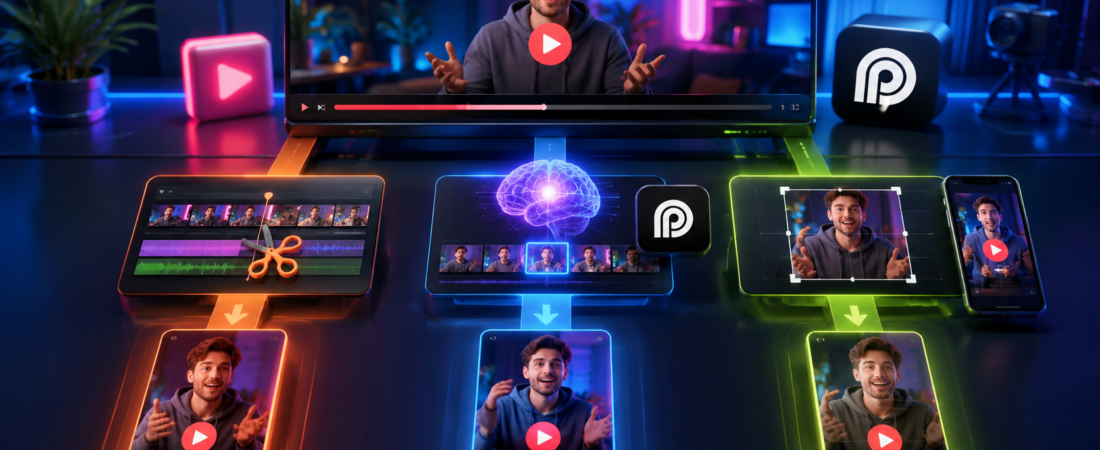
You do not need to record a new vertical video every time you want to publish a YouTube Short. An existing long-form video can become one Short—or several—if you choose a moment that makes sense on its own, reframe it for a vertical screen, and clean up the opening and captions.
| Method | Best for | Cost | Control | Speed |
|---|---|---|---|---|
| YouTube Edit into a Short | Making one quick Short from your own upload | Free | Low | Fast |
| Manual video editing | Polished Shorts and visual demonstrations | Free or paid | High | Slowest |
| AI clipping tool | Finding several clips in podcasts, interviews, and tutorials | Free or paid | Medium | Fast |
Before You Start: Prepare the Video for Shorts
A strong Short is not simply a random minute cut from a longer video. It should feel complete even when the viewer has never seen the original. Before opening an editor, identify a section that introduces one clear idea, delivers useful information, and reaches a conclusion.
For the final export, a 9:16 vertical layout at 1080 × 1920 pixels is the safest standard. Keep the speaker or main subject near the centre of the frame, leave space for captions, and avoid placing essential text too close to the top or bottom where YouTube’s interface may cover it.

- Recommended aspect ratio: 9:16 vertical
- Recommended resolution: 1080 × 1920 pixels
- Best content structure: one hook, one idea, one conclusion
- Captions: strongly recommended, but always proofread them
- Copyright: use your own video or content you have permission to repurpose
Method 1: Turn Your Existing Video Into a Short on YouTube
YouTube’s built-in tool is the easiest option when the source video is already on your channel and you know which section you want to use. You do not need to download the original or upload the same footage again.
How to use Edit into a Short
- Open the YouTube mobile app and go to one of your public long-form videos.
- Tap Remix, then select Edit into a Short.
- Choose up to 60 seconds from the original video.
- Tap Next and select the layout that best fits the subject.
- Add text, filters, or extra footage if needed.
- Write a clear title, check the preview, and upload the Short.
The Short created through this workflow links back to the original video. That makes it useful for turning a strong answer, tip, or story into a discovery clip that can send interested viewers toward the full-length content.
Advantages
- Completely free
- No downloading or re-uploading
- Automatically links to the source video
- Fast when you know the timestamp
Limitations
- You must find the best moment yourself
- Only basic editing controls
- Not efficient for creating many clips
- Only works with eligible videos you uploaded
If the option does not appear, check that the video is public and that Shorts remixing is enabled. Private videos, unlisted videos, and videos with third-party copyright claims cannot be processed through this feature.
Method 2: Create Shorts Manually With a Video Editor
Manual editing takes longer, but it is the best approach when the framing, timing, or visual storytelling matters. You can use CapCut, DaVinci Resolve, Adobe Premiere Pro, Canva, or another editor that supports a vertical canvas.
Step 1: Find a standalone moment
Watch the source video and mark sections that can be understood without the previous five minutes. Good candidates often contain a direct answer, a common mistake, a surprising fact, a short story, or a concise step-by-step explanation.
Avoid clips that begin with phrases such as “as I said earlier” or “that is why it matters.” Those openings depend on missing context and usually cause viewers to scroll away.
Step 2: Create a 9:16 project
Set the project or canvas to 1080 × 1920 pixels. Keep the frame rate the same as the source file unless you have a specific reason to change it. Import the video, place the selected section on the timeline, and remove any unnecessary silence before the main point begins.
Step 3: Reframe the horizontal footage
Simply cropping the centre of a 16:9 video does not always work. For a talking-head video, keep the speaker’s face near the upper-middle area and leave room below for captions. For a two-person interview, you may need to switch between speakers or use a stacked layout.
Screen recordings and product demonstrations need more care. If the important button, chart, or object sits near the edge of the original frame, animate the crop or rebuild the layout so the viewer can still understand the demonstration on a phone.
Step 4: Add and proofread captions
Automatic captions save time, but they are not the final quality check. Correct names, brands, numbers, and technical terms. Break long sentences into readable lines, and keep captions away from the bottom-right area where YouTube’s buttons appear.
- Use a large, high-contrast font.
- Keep each caption group short enough to read quickly.
- Highlight only the most important words.
- Do not add an emoji to every sentence.
- Watch once with sound off to test readability.
Step 5: Strengthen the opening
The most useful moment in a long video may still have a slow opening. Remove greetings, filler words, and setup that does not help a new viewer understand the topic.
You do not need to rewrite every sentence. Often, trimming two or three seconds from the start is enough to make the topic clear immediately.
Step 6: Export and upload
Export the finished video as an MP4 using H.264 at 1080 × 1920. Watch the entire exported file before uploading, because caption timing and framing can shift during rendering. In YouTube Studio, add a concise title and, where available, attach the relevant long-form upload as the Short’s related video.
Method 3: Turn a Long YouTube Video Into Shorts With AI
AI clipping tools are useful when you have a 15–60 minute podcast, interview, webinar, or talking-head video and want several possible Shorts without searching through the entire timeline yourself.
Instead of giving the tool one timestamp, you provide the video or its URL. The AI analyses the speech, identifies moments it considers interesting, reframes the footage vertically, and adds captions. You then review the suggestions and export only the strongest clips.
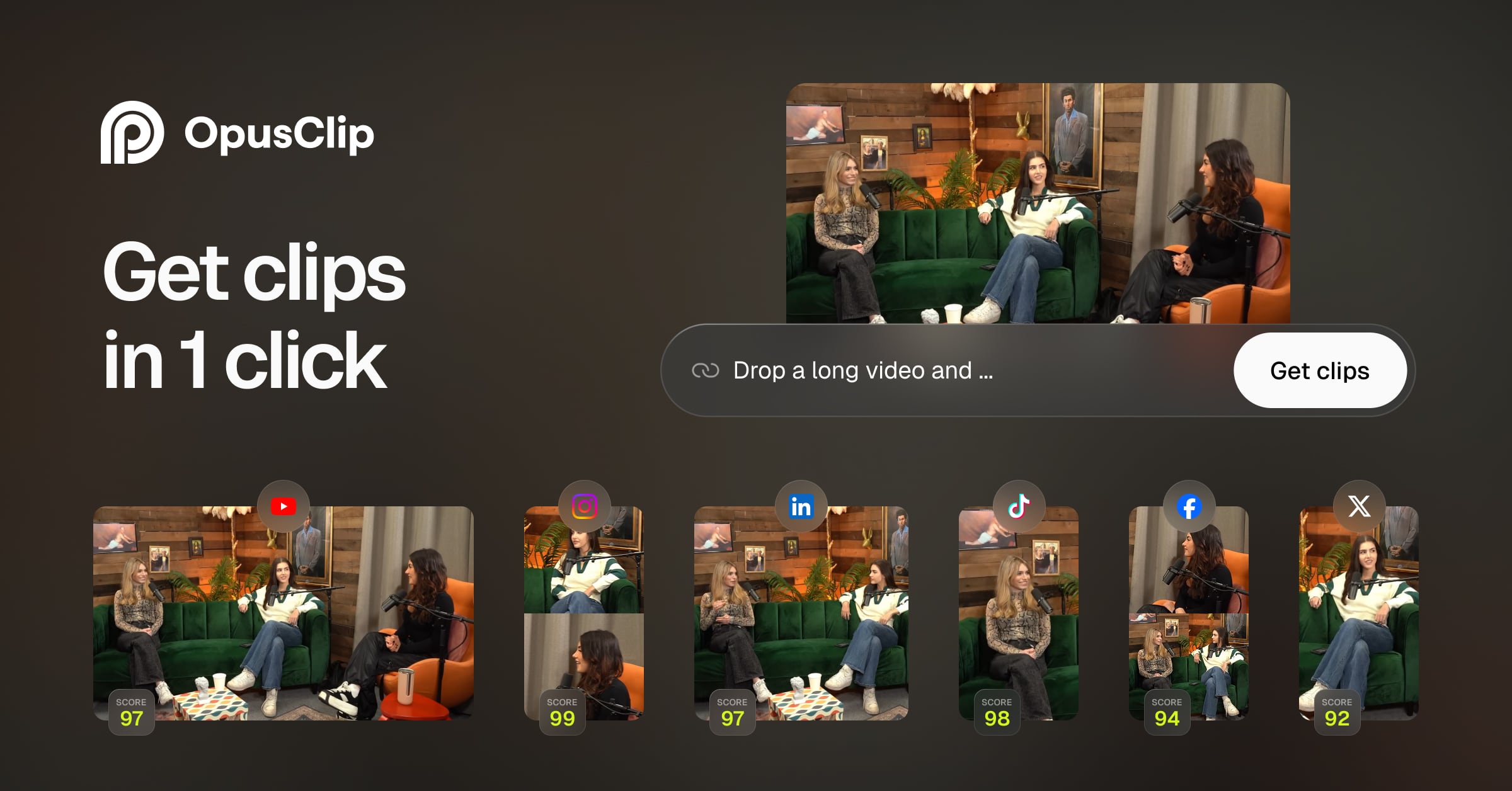
How to turn a YouTube video into Shorts with OpusClip
- Copy the URL of the YouTube video you want to repurpose.
- Paste the URL into OpusClip, or upload the original video file.
- Select the output language and preferred clip length.
- Choose a vertical 9:16 layout.
- Allow the AI to analyse the video and generate suggested clips.
- Watch every clip and check whether the opening makes sense on its own.
- Correct caption errors, framing, and start or end points.
- Export the strongest clips and upload them through YouTube Studio.
The important word here is suggested. Ten generated clips do not necessarily equal ten publishable Shorts. AI may recognise an interesting sentence but miss the earlier context needed to understand it, or end the clip before the speaker reaches the conclusion.
In our hands-on OpusClip test, one 45-minute video produced 10 clips. Five were immediately usable, four were usable after editing, and one was not worth publishing. Reviewing and correcting all results took about 60 minutes. The tool was valuable for finding candidate moments, but it did not remove the need to check context, captions, and framing.
Want the complete test results?
Read our OpusClip Review 2026 for the full test table, usable-clip rate, editing time, strengths, limitations, and advice on who should—and should not—pay for it.
Which Method Should You Use?
| Your situation | Best method | Why |
|---|---|---|
| You know the exact 30–60 seconds you want | YouTube Edit into a Short | Fast, free, and linked to the original |
| You want precise control over every cut | Manual editor | Best timing, captions, and framing control |
| You need several clips from a podcast | AI clipping tool | Finds multiple candidate moments quickly |
| Your video contains a screen recording | Manual editor | Preserves the important visual information |
| You publish long videos every week | AI-assisted workflow | Reduces repetitive clip discovery work |
| You only need an occasional Short | YouTube or a free editor | A monthly AI subscription may not be necessary |
For one occasional Short, start with YouTube’s built-in tool. For a carefully branded or visually complex Short, edit manually. If you regularly need several clips from long-form content, use AI to create the first drafts and human judgment to choose and finish the final videos.
How to Choose the Best Moments for YouTube Shorts
Software can change the aspect ratio and generate captions, but the source moment still determines whether the Short is worth watching. Before editing, score a possible clip against this checklist:
- The first sentence creates curiosity or identifies the topic.
- The clip makes sense without the original video.
- It contains one clear takeaway rather than several incomplete ideas.
- The speaker reaches a conclusion.
- The visual content still works in a vertical frame.
- Unnecessary pauses and introductions can be removed.
- The topic is relevant to the audience you want to reach.
A clip does not need to satisfy every point, but it should meet most of them. If the viewer needs an explanation before the first sentence, choose an earlier starting point or find a different moment.
Moments that often work
- Strong opinions
- Surprising facts
- Common mistakes
- Direct answers
- Before-and-after explanations
- Short stories with a conclusion
- Concise step-by-step tips
Moments that often fail
- Long introductions
- Inside jokes
- Answers without the original question
- References to an earlier section
- Clips that end before the conclusion
- Visuals that cannot fit vertically
- Several unrelated ideas in one clip
Common Mistakes When Repurposing Videos Into Shorts
1. Starting before the real hook
Remove greetings, scene-setting, and repeated questions when they delay the useful part. The viewer should understand why the clip matters within the first few seconds.
2. Cropping important content out of the frame
Check the entire clip after converting it to 9:16. A crop that works while one person is speaking may fail when another person moves or a graphic appears.
3. Keeping too much context
Context is useful only when it helps a new viewer understand the main point. If it delays the payoff, remove it or replace it with a short text hook.
4. Trusting automatic captions
Automatic transcription commonly struggles with names, brands, accents, fast speech, and specialist terminology. One incorrect key word can change the meaning of an otherwise strong clip.
5. Publishing every AI-generated result
AI output should be treated as a set of drafts. Reject repetitive, incomplete, or context-dependent suggestions instead of spending time repairing all of them.
6. Forgetting the original long video
A Short can do more than collect isolated views. Link it to the relevant long video when the option is available, and make the short-form clip a useful entry point into the rest of your content.
Final Recommendation
The easiest way to turn a YouTube video into Shorts depends on how many clips you need and how much control the content requires.
Use YouTube’s Edit into a Short feature when you already know the moment and want a fast, free result. Use a manual editor when the visuals, timing, and brand presentation need close control. Use an AI clipping tool when the difficult part is searching a long video for several possible moments.
The most reliable workflow combines automation with editorial review: let the software create a first draft, then check whether the hook, context, framing, captions, and conclusion work for a viewer who has never seen the original video.
Frequently Asked Questions
Can I turn an existing YouTube video into a Short?
Yes. For your own eligible public video, you can use YouTube’s built-in Edit into a Short feature. You can also edit the original file manually or use an AI clipping tool.
Can YouTube automatically turn a long video into Shorts?
YouTube lets you select and edit part of your uploaded video, but its built-in workflow does not replace the automatic highlight selection offered by dedicated AI clipping tools.
How long can a YouTube Short be?
Eligible vertical or square Shorts can be up to three minutes. However, when using Edit into a Short on one of your existing long-form videos, YouTube lets you select up to 60 seconds from that video.
What is the best aspect ratio for YouTube Shorts?
A 9:16 vertical layout is the standard choice. Exporting at 1080 × 1920 pixels provides a clear full-screen mobile format.
Can I make Shorts from someone else’s YouTube video?
Only when you have permission, the licence allows reuse, or you are using YouTube’s authorised remix features. Downloading and republishing another creator’s video can cause copyright problems.
What is the easiest way to create multiple Shorts?
An AI clipping tool is usually the fastest way to identify several possible moments in one long video. You should still review every clip and reject results that lack context or a complete conclusion.