
I did not test Snappa by designing one perfect Instagram post. That is the easiest possible demo and tells me almost nothing. I gave myself 90 minutes to build a realistic weekly batch: a blog header, a YouTube thumbnail, two square posts and a LinkedIn graphic—then counted every point where the editor slowed me down.
The result explains Snappa better than a feature list. It is not trying to become Photoshop, a video suite or an AI creative department. It is a deliberately narrow graphic maker for people who value speed more than creative range. That restraint is its biggest strength and, eventually, its ceiling.
The 90-minute social batch
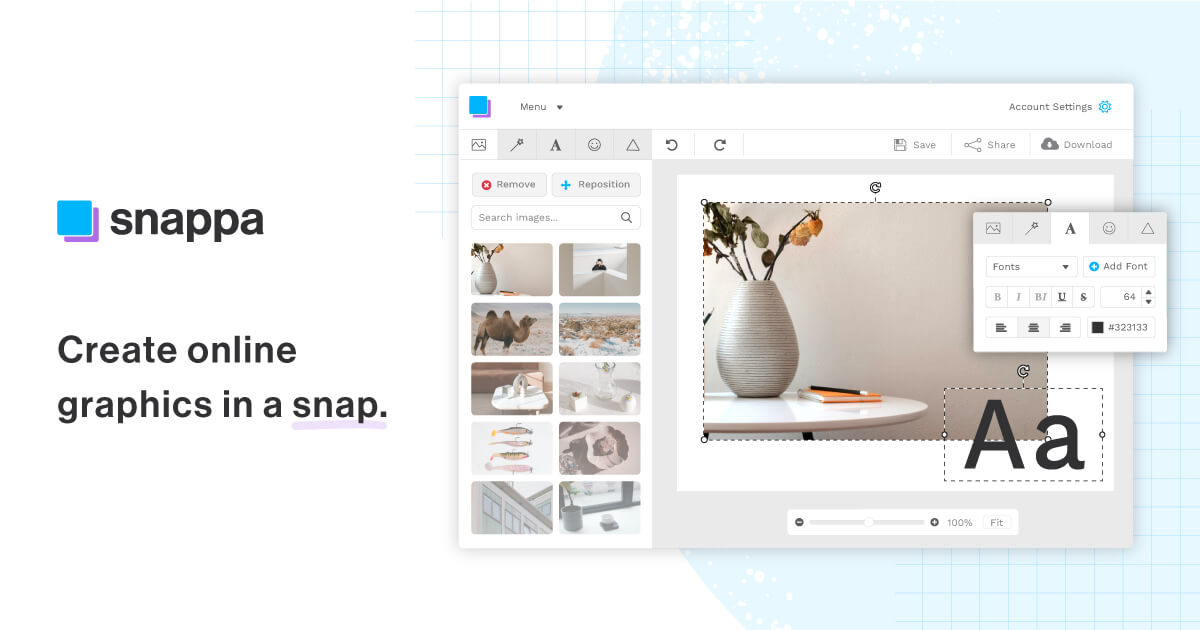
I started with the same short brief for every asset: promote a practical creator workflow, keep the visual hierarchy obvious, and use one consistent palette. Snappa’s preset sizes removed the dull setup work. I could jump from a blog header to a square post without searching for current platform dimensions, and custom dimensions are available when a preset is not enough.
Minutes 0–20: finding a visual direction
Template search was fast because the library is smaller and less chaotic than the biggest design platforms. I found usable structures quickly, although fewer options also meant less chance of finding a genuinely distinctive starting point.
Minutes 20–55: building the master graphic
Text, shapes, stock photos and layer order behaved predictably. The included library is a real advantage: Snappa advertises more than five million royalty-free photos and graphics, licensed for commercial and non-commercial work without attribution. I spent more time choosing an image than fixing it.
Minutes 55–90: adapting the batch
This is where Snappa earned its place. Duplicating the visual system across formats was quicker than rebuilding it in separate editors. The output was clean, consistent and ready to schedule. It was not visually groundbreaking—and for this job, that was fine.
If your content begins as video, I would pair this design stage with the workflow in my one-video-to-ten-post experiment. Snappa is useful for the static carousel covers, quote cards and thumbnails that automatic clipping tools do not produce well.
What Snappa gets right
It is genuinely easy to learn
The editor does not bury routine work under panels and modes. A beginner can understand the template-to-export path in one sitting. Among the products in our Design & Branding tools directory, Snappa is one of the clearest examples of a product winning through subtraction.
The stock library is part of the workflow
Five million-plus assets sound like marketing until you build several posts in one session. Integrated search avoids the download-upload-license loop. I still check whether a stock image feels overused, but not having to verify a separate commercial license for every background saves real time.
The free plan exports without a watermark
Starter includes one user, 6,000-plus templates, the stock library and three downloads per month. That is enough to inspect final quality—not merely play inside an editor you cannot export from. Three downloads disappear quickly, however; my five-asset test would already exceed the monthly allowance.
Where it runs out of road
Snappa is less convincing when the design itself is the product. Its editing depth, format breadth and motion tools do not match more expansive suites. For an all-in-one brand launch covering logo, mockup, website and animation, read my Renderforest review; that is a fundamentally wider workflow.
It is also not a video editor. I would create and caption video in a purpose-built tool—our VEED review covers a more complete social-video workspace—then use Snappa for the thumbnail and supporting static graphics. And if the core task is turning a long recording into vertical clips, the OpusClip review is the relevant starting point.
Finally, simplicity can make repeated output look templated. I had to resist using a finished template as-is. Changing type scale, image crop, spacing and one structural element was usually enough to stop the batch looking borrowed.
Snappa pricing: the practical upgrade point
| Plan | Price | Best for |
|---|---|---|
| Starter | Free | Testing; 3 downloads/month |
| Pro | $15 monthly or $10/month billed yearly | One active creator; unlimited downloads |
| Team | $30 monthly or $20/month billed yearly | Up to 5 users and collaboration |
Pro also adds custom font uploads, background removal, and Buffer/social integrations. My rule is simple: upgrade when you need a fourth export in the same month. The download limit, not a hidden premium template, is the real paywall.
My final take
Snappa made my five-piece batch feel like production work rather than design work. That is a compliment. It kept choices contained, made licensing simple and got me to export quickly. I would happily pay for Pro if static graphics were a weekly obligation; I would not buy it hoping to grow into advanced design.
For a wider content system, combine it with a publishing tool from our growth and distribution directory, or compare it with the data-led visual tools in my Piktochart vs Visme comparison. Snappa wins when the brief is “make this clean and ready today,” not “give me every creative possibility.”
Frequently asked questions
Is Snappa really free?
Yes. Starter requires no credit card and allows three downloads per month without a watermark.
Is Snappa good for YouTube thumbnails?
Yes, especially for fast template-based thumbnails. It is less suitable when you need detailed photo compositing.
Can Snappa replace Canva?
It can replace Canva for straightforward static graphics. It cannot match Canva’s breadth of formats, apps and advanced features.
Pricing and product details last fact-checked August 26, 2026.