Descript Studio Sound can rescue dialogue recorded in an ordinary room, on a laptop microphone, or with a steady fan humming in the background. What it cannot do is turn every damaged recording into studio audio. Push the effect too hard and the same AI reconstruction that removes the room can also make a perfectly human voice sound oddly heavy, smooth or artificial.
Last updated: August 14, 2026 · Feature behavior, AI-credit rules and troubleshooting checked against Descript’s current documentation.
Excellent rescue tool, unreliable substitute for a good recording
Studio Sound is most impressive on understandable speech with moderate echo or continuous background noise. It is less convincing on already-clean microphones, overlapping voices, clipping and recordings where noise covers the words.
My default would not be 100% intensity. I would start around 50–70%, compare it with the original on headphones, and move lower if consonants soften or the speaker stops sounding like themselves.
Descript Studio Sound: quick score
| Question | Short answer |
|---|---|
| What does it remove? | Background noise, room echo and some distractions around spoken voice. |
| What does it work best on? | Podcasts, interviews, voiceovers and talking-head videos with clear speech. |
| Is one click enough? | Technically yes; editorially, no. You should adjust intensity and listen through the result. |
| Does it use AI credits? | Yes. Current plans meter Studio Sound through AI credits. |
| Can it fix clipping? | Not reliably. Audio that was distorted during recording has already lost information. |
| Best starting intensity? | About 50–70% for imperfect dialogue; lower for an already-good microphone. |
What is Descript Studio Sound?
Studio Sound is Descript’s one-toggle voice enhancement effect. It isolates speech, reduces background noise and room echo, then reconstructs the voice to sound cleaner and more consistent. That last part matters: it is doing more than subtracting a hiss with a conventional noise filter.
This regenerative approach explains both the impressive results and the occasional failures. When the source contains enough clean vocal information, Studio Sound can make a cheap microphone sound surprisingly controlled. When the source is ambiguous, the system has to make stronger guesses about what the voice should sound like.
I see it as a rescue and consistency tool, not permission to ignore recording quality. Moving a microphone closer to the speaker, lowering room echo and avoiding clipping will improve the final result more reliably than any post-production effect.
Studio Sound is only one part of the editor. My complete Descript review covers text-based cuts, transcription, Underlord, captions and the wider video workflow.
How Studio Sound handles five real-world audio scenarios
A single dramatic before-and-after clip is not a useful way to judge an audio enhancer. The harder question is whether it improves the recordings creators actually produce without replacing the speaker’s character.
| Recording scenario | Likely value | Main risk |
|---|---|---|
| Clean USB microphone | Small consistency improvement | Unnecessary processing |
| Laptop microphone in a bedroom | Strong improvement to echo and focus | Voice can become too dense |
| Fan or air conditioner | Very good on steady noise | Artifacts around quiet syllables |
| Phone or video-call audio | Can add presence and reduce room sound | Cannot restore detail never captured |
| Clipped or extremely noisy speech | Limited | Suppressed words or unnatural reconstruction |
1. A clean USB microphone
This is where restraint matters most. If the recording already has clear speech, low noise and little echo, Studio Sound has less to repair. At high intensity it may smooth away breath, texture and small tonal differences that make the voice sound real.
For a clean microphone, I would first ask whether any effect is needed. If the levels vary slightly between speakers, a low setting can create consistency. Otherwise, the original may be the better version.
2. A laptop microphone in an untreated room
This is the feature’s sweet spot. Laptop audio often contains understandable speech but too much room: reflections from walls, distance from the microphone and a thin sense that the speaker is sitting across the room.
Studio Sound can pull the voice forward and reduce that bedroom or office character. The trade-off is that a distant voice may become unnaturally close. Start in the middle of the intensity range rather than accepting the default blindly.
3. A fan, HVAC hum or steady background noise
Continuous noise is easier to separate than random sounds that overlap speech. A fan, computer hum or air conditioner gives the system a relatively consistent background pattern. This is where the one-click workflow feels genuinely useful.
Listen closely around sentence endings. When a speaker becomes quiet, aggressive processing can expose watery or gated artifacts. Reducing intensity usually produces a less dramatic but more believable result.

4. Phone, Zoom or compressed call audio
Studio Sound can make call audio easier to listen to, especially when room echo and steady noise are the main problems. It cannot recreate the full frequency detail removed by a low-bitrate call, and it cannot turn a poor connection into a locally recorded WAV file.
The practical goal here should be intelligibility and consistency, not pretending the guest used an expensive microphone. A modest improvement that still sounds like the original speaker is better than a polished voice that no longer matches them.
5. Audio that is too damaged to rescue
There is a point where the source stops containing enough usable information. Severe clipping, two people speaking over each other, loud music covering words, heavy wind hitting the microphone and speech buried under unpredictable noise are not safe one-click fixes.
Descript’s own troubleshooting guide warns that very loud background noise can cause Studio Sound to suppress speech or produce a nearly silent waveform because it cannot separate voice from noise. That is a technical limit, not a setting you can always solve by moving the intensity slider.
What is the best Studio Sound intensity?
There is no single correct percentage. The slider controls how strongly the enhanced voice replaces or blends with the source, so the best value depends on how damaged the recording is and how familiar listeners are with the speaker.
Best for an already-clean microphone that needs a light touch or more consistency.
My preferred starting range for laptop audio, moderate room echo and steady background noise.
Useful for a difficult rescue attempt, but most likely to expose artificial tone, suppressed syllables or a voice that sounds unlike the speaker.
Why does Descript Studio Sound sometimes sound robotic?
The effect can sound artificial because it reconstructs parts of the voice instead of applying only a transparent filter. At high intensity, the reconstructed layer may dominate the original recording.
Common symptoms include:
- A voice that sounds deeper or heavier than normal
- Overly smooth consonants and missing breath detail
- Watery artifacts around quiet words
- Sudden tonal changes between louder and softer phrases
- Different speakers beginning to sound strangely similar
The first fix is to reduce intensity. The second is to apply Studio Sound separately to each participant rather than processing a mixed track. The third is to accept some background noise. A faint room tone is usually less distracting than an obviously reconstructed voice.
Do not process the final podcast mix if it already contains music. Studio Sound is designed for recorded speech, so work on isolated dialogue tracks before adding an intro, music bed or sound effects.
How to use Studio Sound in Descript
- Import or record your audio. Let Descript process and transcribe the source file.
- Select the script or audio layer. For a multitrack sequence, select the individual speaker track you want to enhance.
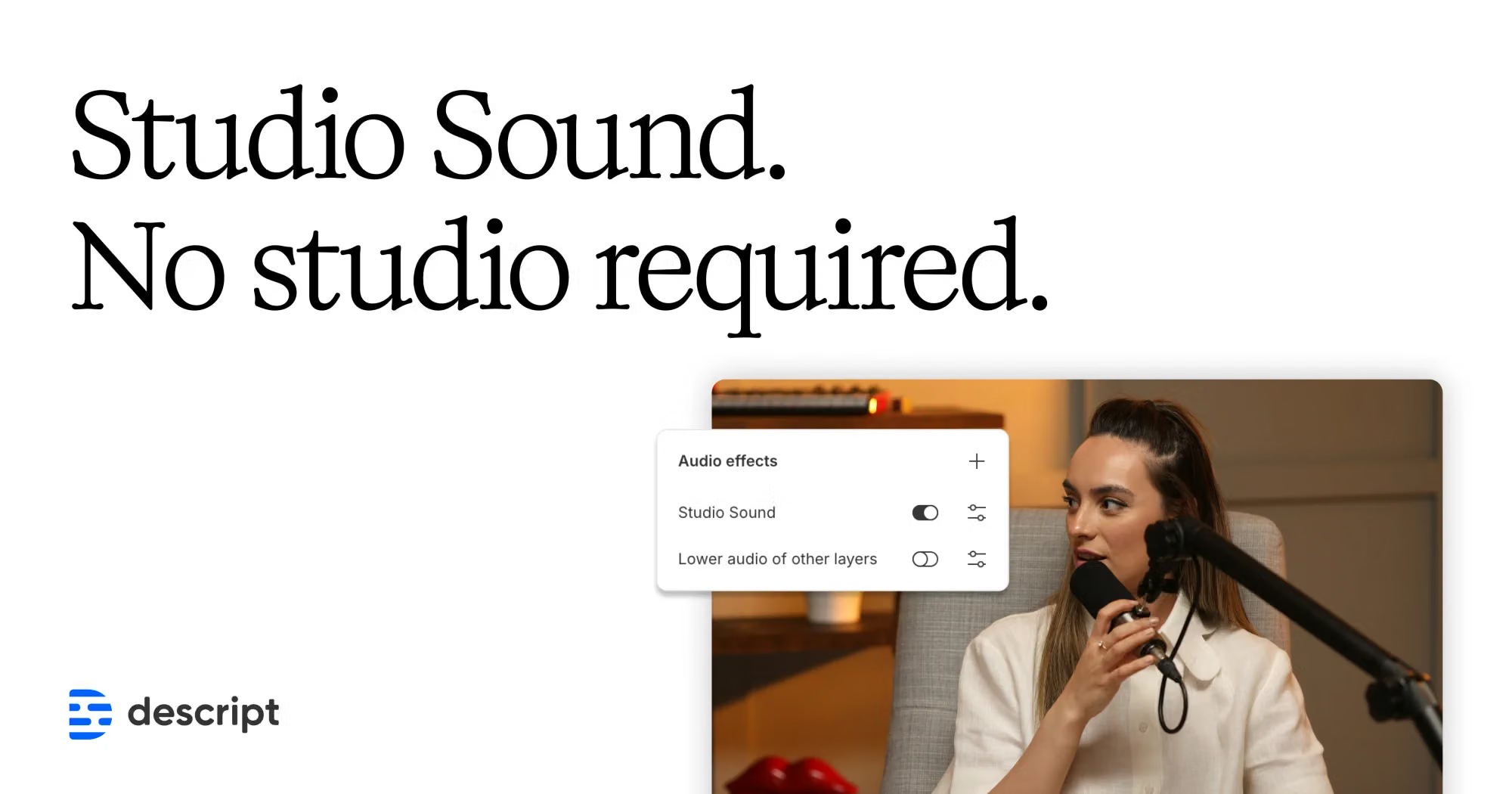
- Open the Properties panel. Find Audio Effects and toggle on Studio Sound.
- Wait for cloud processing. Studio Sound requires an internet connection and is not simply a local playback filter.
- Adjust intensity. Start below the maximum and compare several passages, including quiet speech and sentence endings.
- Review before export. Listen on headphones and normal speakers, then check that the processed voice still matches the person speaking.
Can you apply it to only part of a recording?
Not as a simple range-based effect. Studio Sound works at the file level, so enabling it affects every instance of that source file across the project.
Descript’s official workaround is to duplicate the section into a new composition, flatten it into a new project file, apply Studio Sound to that new file, and replace the relevant part in the original project. It works, but it is considerably less elegant than selecting a noisy sentence and adjusting an effect directly.
Is Descript Studio Sound free, and how many AI credits does it use?
Free accounts receive limited AI access, so you can use Studio Sound to evaluate the workflow. The current Free plan is not suitable for repeated production because its 100 AI credits are a one-time allowance rather than a fresh monthly balance.
Descript does not present Studio Sound as a single fixed-price action in every situation. Its current usage documentation says Studio Sound has a maximum cost of 30 AI credits per file and application. Your Usage page shows the actual deduction.
| Plan | AI allowance | Studio Sound fit |
|---|---|---|
| Free | 100 one-time credits | Testing a small number of representative files |
| Hobbyist | 400 credits/month | Occasional solo podcast or video production |
| Creator | 800 credits/month | Regular production and broader AI-tool use |
There is another cost-management detail worth knowing: Studio Sound is charged when the effect is first applied to the file. Reusing a file that already has the effect through Descript’s Media Library should not charge for applying that existing enhancement again.
Before choosing a plan, read my breakdown of Descript Free limits and the complete Descript pricing guide. The right plan depends on total media hours and all AI actions, not Studio Sound alone.
Is Studio Sound better for podcasts or YouTube?
For podcasts
Podcasting is the strongest use case because the voice is the product. Studio Sound can normalize the perceived quality of hosts and remote guests, especially when one speaker used a good microphone and another joined from a laptop.
The danger is inconsistency between speakers. Apply the effect to separate tracks and tune each voice independently. Processing the entire mixed conversation at one setting may improve the weakest microphone while over-processing the best one.
My eight-step Descript podcast workflow places audio cleanup before filler-word removal, structural edits, music and final export. That order makes it easier to judge dialogue without other layers masking artifacts.
For YouTube talking-head videos
Studio Sound is also valuable for tutorials, explainers and screen recordings. Viewers may tolerate ordinary camera quality, but distant or echo-heavy speech quickly makes a video feel amateur.
YouTube audio is often consumed through phone speakers, so prioritize clarity over subtle tonal perfection. Still, check the finished result on headphones before publishing. Strong processing artifacts that disappear on a phone may remain obvious to viewers wearing earbuds.
If your main task is finding short clips rather than cleaning the master recording, read OpusClip vs Descript. Studio Sound strengthens Descript’s full-editing workflow; it does not turn Descript into the most efficient batch clipper.
The limitations Descript’s demo clips do not emphasize
- It needs an internet connection. The enhancement is processed online.
- It is file-level. A source used several times across a project receives the same effect.
- Partial processing is awkward. You need to create a separate flattened file for the selected section.
- It is speech-focused. Do not treat it as a mastering tool for music or complete mixes.
- It cannot reliably recover clipping. Distortion recorded into the source remains a fundamental problem.
- Very loud noise can suppress speech. Reducing intensity may help, but some files are beyond clean separation.
- AI-generated speech needs another step. Studio Sound cannot be applied directly to text-to-speech until it is converted to an editable audio layer.
- Long files take time. Descript recommends splitting files longer than roughly six hours or several gigabytes.
There is also a documented Chrome encoding issue on macOS and Windows that can introduce echo or audio drift after export. Descript recommends using its Repair Audio Drift feature if this occurs.
Studio Sound is a good fit if…
- Your content is mainly spoken voice
- You record in a home office or untreated room
- You edit remote guests with inconsistent microphones
- You value a fast, simple workflow over manual audio engineering
Look elsewhere if…
- You need detailed EQ, restoration and mastering control
- Your source contains heavy clipping or overlapping speech
- You edit music rather than dialogue
- You need offline processing or precise automation by section
For a workflow focused on generating written assets from a finished recording instead of repairing its audio, see Castmagic vs Descript. The two tools solve different stages of podcast production.
Final verdict: use it as a safety net, not a recording strategy
Descript Studio Sound deserves its reputation because it compresses a technically difficult job into one switch and one intensity slider. On ordinary creator audio—clear speech with too much room, a fan in the background or inconsistent microphones—it can make a meaningful improvement with almost no learning curve.
The marketing phrase “studio sound” is where expectations become unrealistic. It cannot recover detail a microphone never captured, separate every overlapping sound or guarantee that a reconstructed voice remains natural at maximum intensity.
My practical rule is simple: record as if Studio Sound does not exist, then use it conservatively when the raw file needs help. Begin around 50–70%, compare multiple passages with the original, and stop once the distracting noise is controlled. The best result is not the most processed one. It is the version listeners stop noticing.
Frequently asked questions
Does Descript Studio Sound remove background noise?
Yes. It is designed to reduce steady background noise, room echo and other distractions around speech. It works best when the voice remains clearly understandable in the original recording.
Is Descript Studio Sound free?
Free users can test Studio Sound through Descript’s limited AI allowance. The Free plan currently includes 100 one-time AI credits, so it is better for evaluation than recurring production.
How many AI credits does Studio Sound use?
The exact cost can depend on the file, but Descript currently caps Studio Sound at 30 AI credits per file and application. Check Settings → Usage for the actual deduction.
What Studio Sound intensity should I use?
Start around 50–70% for typical laptop or untreated-room audio. Try 20–40% on an already-clean microphone. Use 80–100% only when the source needs aggressive rescue and review it carefully for artifacts.
Why does Studio Sound make my voice sound robotic?
Studio Sound reconstructs parts of the voice. At high intensity, that generated layer can remove natural texture or change tone. Lower the intensity and preserve more of the original recording.
Can Studio Sound remove echo?
It can reduce moderate room echo and reverb around speech. Strong reflections, very distant microphones and large empty rooms may still produce unnatural results.
Can I apply Studio Sound to only one section?
Not directly as a simple selection effect. Because Studio Sound applies at file level, Descript recommends creating a separate flattened file from the section and processing that file.
Can Studio Sound fix clipped audio?
Not reliably. Once a recording clips, part of the original waveform has been lost. Studio Sound may change the sound, but it cannot guarantee recovery of the missing information.
Continue reading
Source note: Feature behavior, file-level processing, intensity controls and troubleshooting were verified using Descript’s official Studio Sound documentation. AI-credit limits were checked against the company’s guide to media minutes and AI credits. Plan allowances were checked against Descript’s pricing page. Product limits can change, so confirm the Usage panel before processing a large production file.