
Riverside is worth considering if reliable remote podcast recording matters more to you than advanced post-production editing. Its strongest advantage is recording each participant locally, while its weaker areas are editing depth, plan limits and the cost of upgrading.
Last fact-checked: August 16, 2026. Pricing and plan limits can change, so verify them before subscribing.
Riverside is one of the most convincing choices for remote video podcasts and interview-led YouTube channels. Its local multitrack recording solves a more important problem than most of its AI extras: protecting final recording quality from a messy live internet connection. I would choose it when losing or degrading a guest interview would be expensive. I would not choose it primarily for solo recording, audio-only shows on a tight budget, or detailed post-production—the value becomes much less obvious in those workflows.
Best for
Remote interviews, video podcasts, customer stories, webinars and talking-head shows with guests.
Not ideal for
Advanced timeline editing, highly designed YouTube videos, or creators who only record themselves.
Standout feature
Locally recorded, separate high-quality tracks for each participant.
Biggest catch
The guest’s local file still has to finish uploading, and the useful paid workflow starts at Pro.
What is Riverside, really?
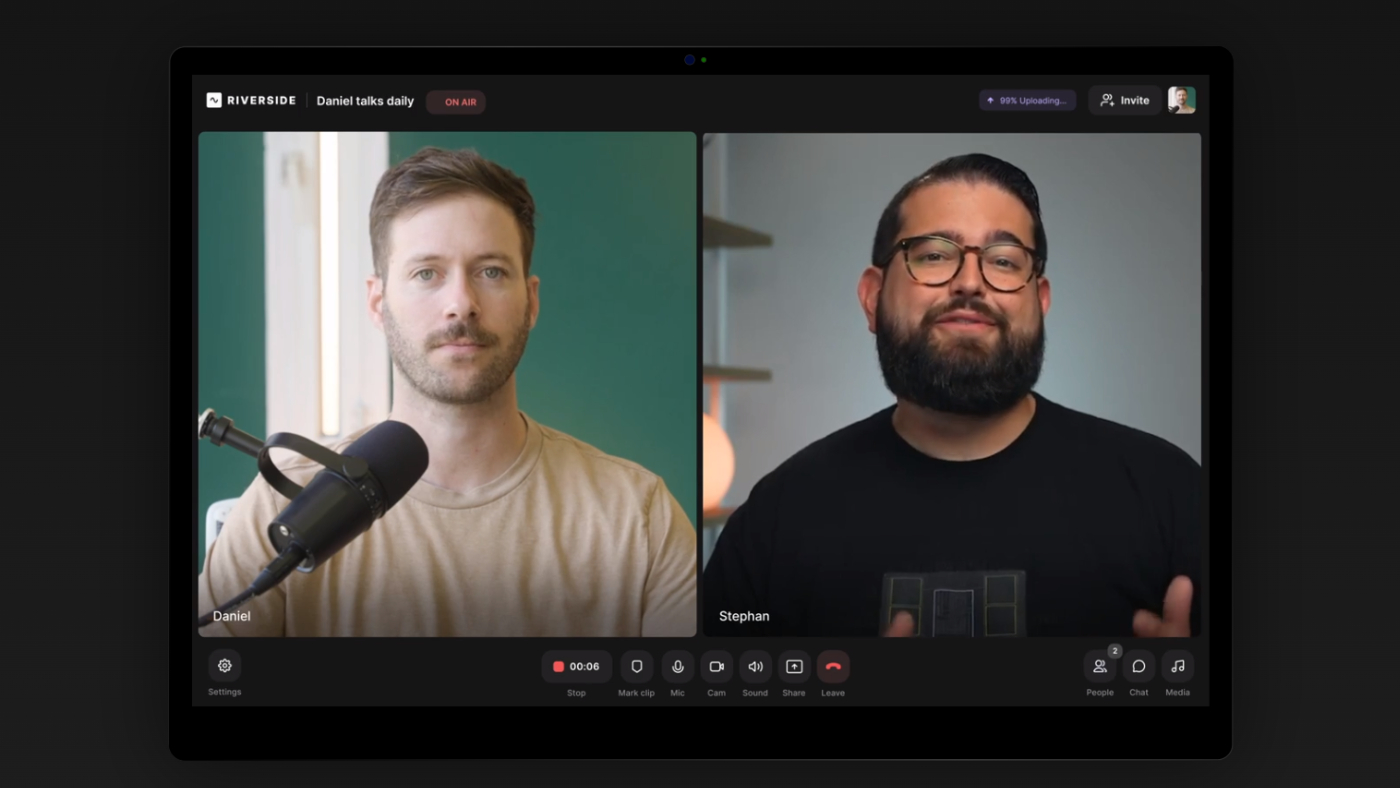
Riverside is a browser- and app-based recording studio for capturing remote or in-person conversations. The host sends an invitation link, participants select their microphone and camera, and Riverside records each person as a separate track. After the session, you can edit by transcript, enhance audio, generate clips, export the finished video, or download the individual files for another editor.
That makes Riverside broader than Zoom, but more recording-focused than a full editor. This distinction matters. Zoom is built to make a meeting happen. Riverside is built to give you usable production files after the call. Meanwhile, an editor such as Descript is strongest after footage already exists. My Descript vs Riverside comparison goes deeper into that recording-versus-editing decision.
The platform now tries to cover nearly the whole workflow: recording, transcription, text-based editing, AI audio cleanup, clips, show notes, podcast hosting and publishing. I like the convenience, but I would still judge Riverside first as a recorder. That is where its clearest advantage lives.
The feature that makes Riverside worth considering: local recording
In an ordinary video call, the platform receives a compressed stream through the internet. If a guest’s connection becomes unstable, their visible and recorded quality can fall with it. Riverside takes a different approach: it records a high-quality file locally on every participant’s device while progressively uploading that file to the platform.
Riverside’s documentation says these high-quality tracks are recorded on the participant’s device rather than over the internet. Each person gets a separate audio and video file, and paid plans can record video up to 4K with audio up to 48 kHz, subject to the participant’s hardware and settings.
For editing, the separate-track part is at least as valuable as the resolution. If one guest has a noisy fan, you can clean only that person’s audio. If the host coughs while the guest is speaking, you can mute the host track. If you want a vertical clip, you can reframe individual cameras instead of cropping one flattened grid.
Does bad internet no longer matter?
Not completely. The final local track is less vulnerable to connection quality, but the live conversation still uses the internet. A weak connection can cause lag, interruptions and people talking over one another. More importantly, every locally recorded file must finish uploading before the participant closes Riverside.
Riverside tells participants to keep the browser tab or mobile app open until the upload reaches 100%. If someone leaves early, the host may need to ask them to reopen Riverside and resume the upload. A cloud recording can act as a lower-quality fallback, but that is not the file you chose Riverside to obtain.
Is Riverside easy for podcast guests?
On desktop, the guest experience is pleasantly direct. A guest opens the invitation in a supported browser, enters a name, grants camera and microphone permission, checks the selected devices and joins the studio. They do not need the Mac app. Riverside currently supports Chrome, Edge and Safari for computer guests; Firefox, Brave, Arc and mobile browsers are not officially supported for recording.
Mobile guests can join, but they need the Riverside iOS or Android app rather than a mobile browser. That is still useful—especially when a phone has a better camera than a laptop—but it adds a download step. For a technically nervous guest, send the link and device instructions before the interview, not two minutes before it starts.
What the host should do before every session
- Ask the guest to use headphones and a real microphone if available.
- Confirm they are using a supported browser or the mobile app.
- Close unnecessary tabs and applications.
- Check that the correct microphone is selected—not the laptop mic by accident.
- Record a short sample and listen for echo, clipping and room noise.
- Explain the upload wait before the interview begins.
This is not unique to Riverside. Remote recording quality is always partly a human-process problem. Riverside can preserve the file it receives, but it cannot turn a distant laptop microphone in a reflective kitchen into a studio microphone.
Audio and video quality: excellent potential, not an automatic miracle
Riverside’s paid plans support up to 2160p 4K video and 48 kHz audio. The word up to is important. A participant needs a camera capable of the selected resolution, enough device performance and the right setup. Riverside also notes that some cameras and effects can impose lower limits.
For most YouTube interviews, I would take a well-lit 1080p image with clear audio over a dark, noisy 4K file. The value of 4K appears when you want to crop, punch in, reframe for vertical video or preserve a high-quality master. It does not make every webcam look cinematic.
| Quality feature | Why it matters | What it cannot fix |
|---|---|---|
| Local recording | Protects the source file from live-call compression and connection drops. | Lag and interruptions during the actual conversation. |
| Separate tracks | Lets you clean, mute, reframe and mix each participant independently. | A guest choosing the wrong microphone. |
| Up to 4K video | Provides room for cropping and higher-quality video podcast masters. | Poor lighting, composition or a low-resolution camera. |
| 48 kHz audio | Fits professional video production workflows and preserves a strong source. | Echo, clipping, background noise or bad mic placement. |
Editing, Magic Audio and AI clips
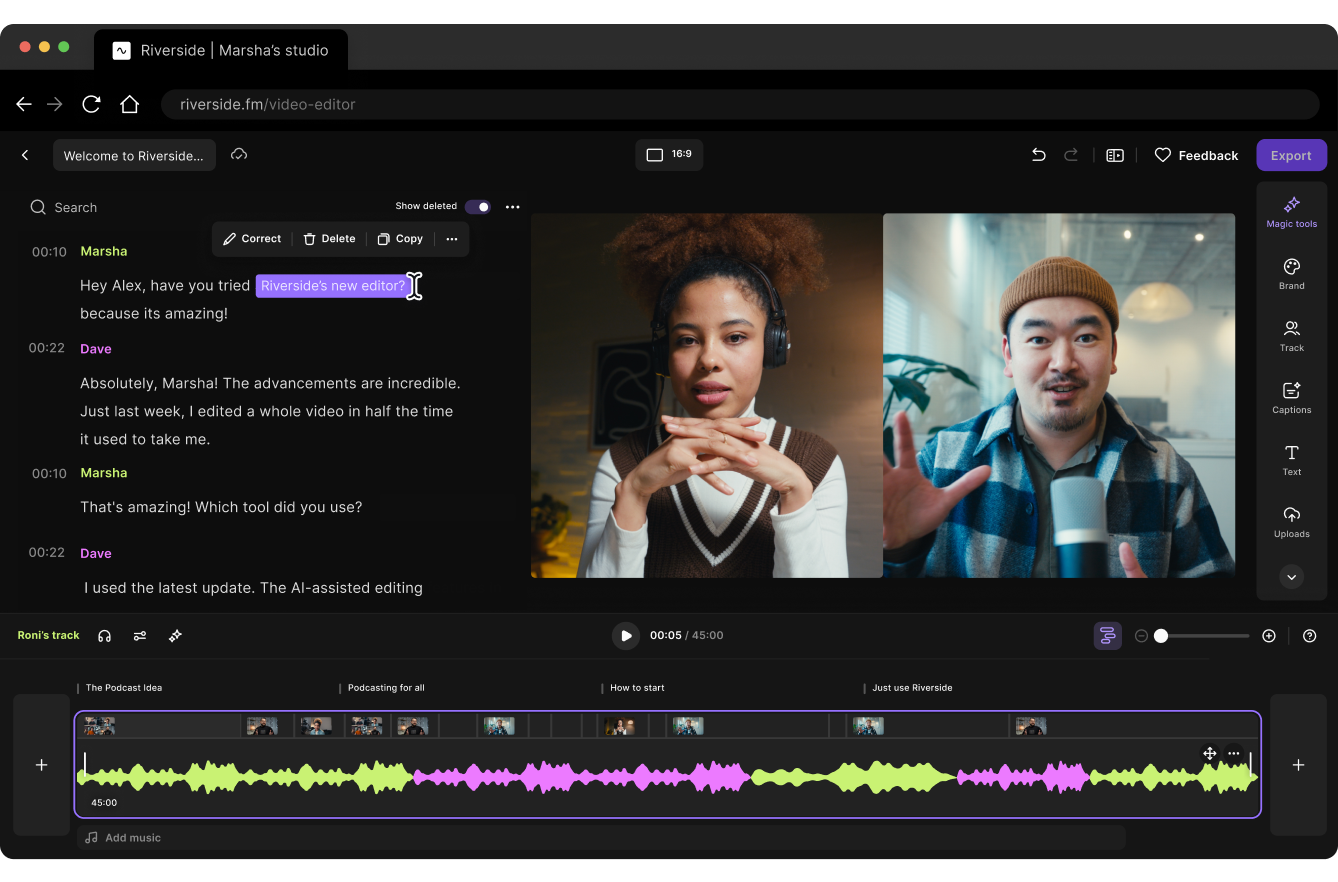
Riverside includes transcript-based editing, so deleting words can remove the corresponding part of the recording. It also offers features such as silence and filler-word removal, captions, layouts, show notes, Magic Audio and Magic Clips. That is enough for many interview episodes: remove false starts, switch layouts, clean the sound, add captions and export.
I would not confuse “enough to publish a podcast” with “a complete creative editor.” If you need detailed pacing, layered B-roll, motion graphics, fine audio repair or precise timeline control, a dedicated editor remains more comfortable. The built-in editor is best when speed matters more than total control.
For deeper text-based post-production, read my Descript review and eight-step Descript podcast editing workflow. If your main problem is weak voice audio rather than remote capture, the Descript Studio Sound review explains where AI enhancement helps—and where it starts sounding processed.
Are Magic Clips good enough to replace a dedicated clipper?
Magic Clips is a useful starting point: it finds moments, creates short edits and applies captions. For a podcaster who only wants a few promotional clips, keeping that job inside the recording platform is convenient. But automatic highlight selection and packaging are specialist problems. A dedicated tool may give you a faster batch workflow or more clip-specific controls.
If short-form output is central to your strategy, compare the workflow with my OpusClip review, OpusClip vs Vizard comparison and beginner AI clip generator comparison. Riverside’s advantage is convenience; a specialist clipper’s advantage is focus.
Riverside pricing in 2026: which plan makes sense?
The pricing language deserves careful reading. Riverside generally allows unlimited recording, but limits how many hours of separate high-quality tracks you can download. That is the production feature most serious podcasters need. The free plan’s two hours are one-off, not a fresh two-hour allowance every month.
| Plan | Price | Separate-track allowance | Best fit |
|---|---|---|---|
| Free | $0 | 2 hours, one-off | Testing one or two real sessions before paying. |
| Pro | $29 monthly or $24/month annually | 15 hours/month | Most regular video podcasters and interview creators. |
| Grow | $39 monthly or $34/month annually | 20 hours/month | Creators who also need livestreaming, scheduling and audience-growth tools. |
| Webinar | $99 monthly or $79/month annually | 25 hours/month | Lead-generation webinars with registration and engagement tools. |
| Business | Custom | Unlimited | Media teams, agencies and organizations needing controls, collaboration or compliance. |
Free: a useful evaluation plan, not a comfortable production plan
Free includes up to 720p video, 44.1 kHz audio, Riverside branding, editing tools and a one-time two-hour allowance for separate tracks. You can still record, edit and export combined content, but the watermark and high-quality-track limit make it better for evaluation than an ongoing branded show.
Pro: the sensible plan for most serious podcasters
Pro removes the watermark, raises recording quality to 4K and 48 kHz, includes 15 hours of separate-track downloads per month and unlocks the more complete editing and enhancement workflow. For one weekly show, this is the plan I would start with. Just budget based on actual session length—including setup, restarts and post-interview conversation—not only the final published duration.
Grow and Webinar: pay for the workflow, not a slightly bigger number
Grow makes sense when social scheduling, a second podcast studio, newsletters or 1080p multistreaming would replace separate services. Webinar is for structured events with registration, reminders, polls, Q&A and lead capture. I would not upgrade from Pro merely for five or ten more download hours unless the added production tools also matter.
The real drawbacks I would consider before subscribing
What Riverside gets right
- Local high-quality recording for every participant
- Separate audio and video tracks
- Low-friction desktop guest invitations
- Up to 4K video and 48 kHz audio on paid plans
- Useful transcript editing and repurposing tools
- Mobile apps for remote guests and phone cameras
Where it can frustrate you
- Guests must wait for local tracks to upload
- Live conversation still suffers on weak connections
- Free separate-track allowance is one-off
- Advanced edits still benefit from another tool
- Browser and mobile requirements need preparation
- User reports include occasional glitches and upload failures
1. The upload is a vulnerable handoff
Local recording produces a better source, but it creates a handoff that a basic cloud recorder does not have: the locally stored data must reach Riverside. The platform can resume incomplete uploads, yet that requires the guest to keep or reopen the browser/app and preserve the local data. Riverside specifically warns mobile users not to uninstall the app or log out while a recording is still uploading.
2. Reliability complaints cannot be dismissed
Public reviews are mixed rather than uniformly negative. Many users praise recording quality and ease of use, while others report glitches, slow processing, incomplete uploads or missing sections. Trustpilot showed a 3.8/5 score when this article was checked, with a meaningful minority of one-star reviews. User-review platforms have selection bias, so I would treat this as a risk signal—not proof that most sessions fail.
My practical response would be process, not panic: run a test, monitor uploads, keep a secondary audio backup for high-value interviews and avoid deleting local or external files until the final export has been checked.
3. The product is becoming broader—and potentially more confusing
Riverside now stretches into editing, AI generation, social publishing, hosting, newsletters, livestreaming and webinars. That can replace several subscriptions, but it also makes the plan grid harder to parse. Buy it for a specific bottleneck. “It does more things” is not the same as “I need those things.”
Who should use Riverside?
Riverside alternatives: what changes the decision?
| Alternative | Choose it when… | What you give up or change |
|---|---|---|
| Descript | Editing the recording is a bigger problem than capturing remote guests. | Descript Rooms can record, but Riverside is the more capture-centered workflow. |
| Zoom | You need familiar meetings and convenience more than production-grade source files. | More compression and less post-production flexibility. |
| SquadCast or Zencastr | You want another local-recording podcast workflow and prefer its pricing or interface. | Feature sets, limits and publishing tools differ; compare your exact monthly usage. |
| OpusClip or Vizard | Your recording already exists and the priority is producing many social clips. | These are repurposing tools, not substitutes for reliable remote capture. |
| Castmagic | You mainly want transcripts, show notes, newsletters and written assets from audio. | It does not replace the recording studio. |
For written repurposing after the podcast is recorded, see my Castmagic review and Castmagic vs Descript comparison. These tools overlap around transcripts and content generation, but they solve a different primary problem from Riverside.
Final verdict: is Riverside worth it in 2026?
Yes—for creators whose business depends on remote interviews, especially video interviews. Riverside’s value is easiest to justify when a recording cannot simply be recreated. Local high-quality tracks, separate participant files and an approachable guest workflow reduce the compromises of recording across the internet.
I am less convinced by Riverside as a universal creator subscription. Solo creators may not need the remote-recording infrastructure. Advanced editors will still want another application. Audio-only podcasters may find a cheaper specialist workflow. And no serious host should mistake local recording for permission to ignore upload status and backups.
The clean decision is this:
Buy Descript when editing time is the expensive problem. Add a dedicated clipping or repurposing tool only when Riverside’s built-in output cannot meet the volume or control you need.
Start with the free plan and run a realistic interview—not a five-minute microphone check. Download the separate tracks, edit an episode, test a clip and make a guest complete the upload workflow. If that process removes friction from something you publish regularly, Pro is the sensible entry point.
Frequently asked questions
Is Riverside free?
Yes. Riverside has a free plan with unlimited single-track recording and editing, up to 720p video, 44.1 kHz audio and a Riverside watermark. It includes a one-time allowance of two hours for downloading separate high-quality audio and video tracks.
Does Riverside have a watermark?
Exports on the Free plan carry Riverside branding. Paid creator plans remove the watermark from standard recorded content; livestream branding and advanced customization depend on the plan and workflow.
Is Riverside better than Zoom for podcast recording?
Usually, yes, when final production quality matters. Riverside records separate local tracks for each participant, while Zoom prioritizes the live meeting experience. Zoom can still be the easier choice for ordinary calls or low-stakes internal recordings.
Can Riverside record in 4K?
Paid plans support recording up to 4K, but the actual result depends on the participant’s camera, device performance, selected studio resolution and setup. Some webcams, effects and hardware configurations record below 4K.
Do Riverside guests need an account or app?
Desktop guests can join from a supported browser through an invitation link and do not need the Mac desktop app. Mobile guests need the Riverside iOS or Android app because mobile-browser recording is not supported.
What happens if a guest closes Riverside before uploading?
The guest may be able to reopen Riverside and resume the local track upload. The host can also use an available cloud or partial track as a fallback, but its quality may be lower. Participants should always wait for the successful-upload confirmation.
Can Riverside replace Descript?
It can replace Descript for straightforward transcript edits, layouts, captions, audio enhancement and clips. Descript remains the stronger choice when detailed text-based editing and post-production are the center of the workflow.
Which Riverside plan is best for a weekly podcast?
Pro is the sensible starting point for most weekly shows because it includes 15 hours per month of separate-track downloads, up to 4K video, 48 kHz audio and no watermark. Calculate usage from full session time rather than final episode length.
Sources and review methodology
This editorial review compares Riverside’s documented recording workflow and current plan limits with the needs of podcasters and video creators. It does not claim months of personal use or invent performance tests.